Key Takeaways
- Optimize your PC for gaming by cleaning up unnecessary files, disabling resource-hogging startup programs, and prioritizing gaming processes.
- Regularly update your system’s drivers, especially for the graphics card, to ensure optimal performance and compatibility.
- Adjust in-game graphics settings such as resolution, shadows, and texture quality to balance performance and visuals.
- Improve cooling efficiency by cleaning your PC’s internal components, upgrading fans, or applying new thermal paste if needed.
- Use game optimization tools to automate performance tweaks, clean up storage, and monitor system metrics for better gameplay.
- For online gaming, reduce latency by using a wired connection, setting up QoS on your router, and disabling background bandwidth-consuming apps.
There’s nothing quite like the thrill of diving into a new game, but a slow or laggy PC can ruin the experience in seconds. I’ve been there—waiting for endless load screens or watching my frame rates drop at the worst possible moment. The good news? You don’t need to spend a fortune on upgrades to get your PC running like a dream for gaming.
Understanding the Importance of Optimization
Optimizing a PC for gaming boosts performance without requiring expensive upgrades. Poor optimization often leads to lag, stuttering, or slow load times that disrupt gameplay. By optimizing settings, I ensure smoother frame rates and faster response times, even on older hardware.
Adjusting software settings reduces background processes competing for system resources. This allows games to utilize the CPU, GPU, and RAM more efficiently. Tasks like disabling unnecessary startup programs or services free up system capacity, directly improving performance.
Regular system maintenance, like cleaning temporary files, ensures no performance-draining clutter remains. Fragmented storage and accumulated cache data lower gaming efficiency, but simple cleanup improves system speed.
Updating drivers, especially for the graphics card, applies performance enhancements included by manufacturers. Outdated drivers can limit a PC’s potential, causing performance bottlenecks that optimized software resolves.
I focus on balancing in-game settings based on my system’s specifications. Lowering non-essential settings, like shadows or post-processing effects, often achieves higher frame rates without compromising playability. Effective optimization enhances both visuals and performance for a better gaming experience.
Preparing Your PC for Gaming
Optimizing your PC ensures smooth gameplay and enhances overall performance. Focusing on key preparation steps makes a noticeable difference.
Check System Requirements
I always confirm the game’s minimum and recommended specifications before installing. Minimum requirements ensure a game can run, but aiming for recommended specs delivers better performance. Components to check include the CPU, GPU, RAM, and available storage. For instance, if a game needs 16 GB of RAM but only 8 GB is available, upgrading the memory improves performance.
Update Drivers and Software
Updating system drivers boosts compatibility and resolves bugs. I prioritize graphics drivers since they directly impact gaming performance; both NVIDIA and AMD regularly release updates for better frame rates and visuals. Additionally, OS updates address performance issues and security vulnerabilities, so I apply updates promptly for stability.
Remove Unnecessary Programs
Unnecessary applications consume resources, limiting a game’s performance. I regularly uninstall unused software to free storage and reduce background processes. For example, I disable startup programs like messaging apps or cloud services that don’t enhance gaming. Using tools like Task Manager, I monitor resource usage and adjust accordingly.
Improving Performance
Boosting your PC’s performance for gaming requires fine-tuning your system settings and hardware. These adjustments create a smoother and more enjoyable gaming experience.
Adjust Graphics Settings
Lowering in-game graphics settings improves performance by reducing GPU load. I usually start by adjusting resolution, shadows, and texture quality. For example, lowering texture resolution to medium while disabling features like anti-aliasing can boost frame rates significantly. Enabling V-Sync or frame rate caps also eliminates screen tearing, ensuring smoother gameplay.
Using the in-game benchmarking tool, where available, helps test performance changes. I recommend tailoring settings to maintain a balance between visual quality and higher frame rates that match the system’s capabilities.
Overclocking Your Hardware
Overclocking increases clock speeds on your CPU or GPU for better game performance. I use reliable software like MSI Afterburner or AMD Ryzen Master to fine-tune these settings. It’s essential to monitor temperatures with tools like HWMonitor to avoid overheating.
If done properly, overclocking enhances system responsiveness and frame rates. Testing system stability after overclocking reduces the chances of crashes during gameplay.
Optimize Power Settings
I choose the “High Performance” power plan in Windows for gaming. This ensures the CPU and GPU function at their full capacity without unnecessary power-saving constraints. You can configure this in the Power Options menu.
Disabling settings like USB selective suspend and adjusting advanced power settings eliminates potential performance throttling. I’ve found this especially useful for laptops where default energy-saving configurations often limit gaming potential.
Enhancing Cooling and Maintenance
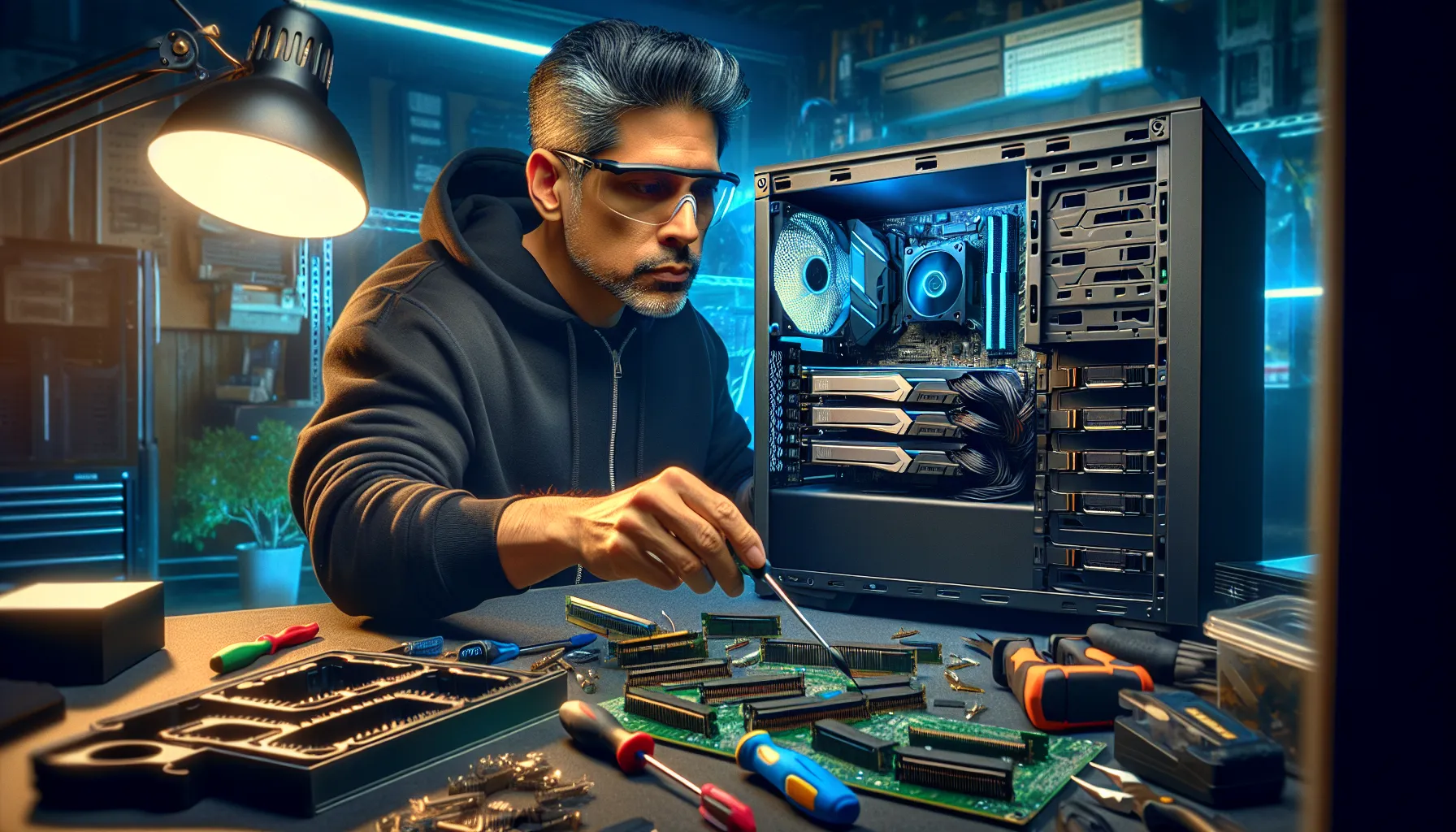
Keeping your PC cool and well-maintained directly impacts gaming performance. Consistent care improves hardware longevity and ensures smooth gameplay.
Clean Your PC Regularly
Dust buildup reduces cooling efficiency and can cause overheating, leading to decreased performance or potential hardware damage. I regularly clean the interior of my PC to prevent this. Use compressed air to remove dust from fans, vents, and components, ensuring unobstructed airflow. Pay attention to the CPU cooler and GPU as they handle the most heat. Clean the dust filters if your case has them, as clogged filters block airflow. Perform this cleaning every 3-6 months or more often in dusty environments.
Upgrade Cooling Solutions
Existing cooling setups might struggle during intense gaming sessions. I choose effective cooling methods like upgrading to larger or more efficient case fans. Thermal paste on the CPU also degrades over time; replacing it improves heat transfer. Consider investing in a liquid cooling system for better heat dissipation, especially if you’re overclocking. Ensure your PC case has a sufficient number of intake and exhaust fans to maintain proper airflow. These upgrades help maintain stable performance under heavy gaming loads.
Optimizing Network for Online Gaming
A stable network connection is critical for smooth online gaming. Focusing on reducing latency and improving connection reliability can significantly enhance your gaming experience.
Reduce Latency
I prioritize reducing latency to prevent delays during gameplay. Disabling background applications that use bandwidth, like streaming or file-sharing apps, ensures more resources for gaming. Adjusting QoS (Quality of Service) settings on my router helps prioritize gaming traffic on the network. I also choose gaming servers closer to my location, as geographic proximity can minimize ping times.
Use Wired Connections When Possible
Using a wired connection instead of Wi-Fi improves stability and reduces packet loss. I connect my PC directly to the router using an Ethernet cable for the fastest speeds. When a wired connection isn’t an option, I ensure my gaming setup is as close to the router as possible and use a 5 GHz Wi-Fi band for less interference, which is essential for online gaming.
Using Game Optimization Tools
Game optimization tools streamline the process of enhancing performance by adjusting system settings automatically. I use these tools to reduce the manual effort needed for tweaking configurations and to ensure maximum efficiency during gameplay. Many tools identify unnecessary background processes, disable them temporarily, and allocate more resources to running games. This boosts frame rates and reduces stuttering.
Some optimization tools also recommend specific graphics settings based on your PC’s hardware. For example, NVIDIA GeForce Experience and AMD Radeon Software optimize in-game graphics settings to balance performance and visuals. They analyze system specs and enable the best configuration without manual input. This ensures smoother gameplay, especially on systems with mid-range hardware.
Other tools monitor system performance in real time, displaying metrics like CPU and GPU usage, temperature, and memory consumption. Applications like MSI Afterburner help me track these metrics to identify bottlenecks. When my temperatures or usage spikes during a game, I can take measures like closing other applications or lowering in-game settings.
Some tools include features for cleaning temporary files and freeing disk space, which improves loading times. For example, CCleaner and Razer Cortex help remove unnecessary files and optimize storage, creating more room for games and better disk performance. These cleanup functions can prevent system slowdowns caused by cluttered storage.
Several tools offer additional customization for advanced users. For instance, third-party software like Game Fire or Wise Game Booster prioritizes gaming processes and allows customized optimizations. They target specific system areas to maximize performance, giving users more control over resource allocation during gaming sessions.
Conclusion
Optimizing your PC for gaming doesn’t have to be overwhelming or expensive. With a little effort and the right steps, you can unlock smoother gameplay and enjoy a more immersive experience. Whether it’s tweaking settings, maintaining your hardware, or using helpful tools, every adjustment makes a difference.
Take the time to experiment and find what works best for your setup. Your gaming experience will thank you, and your PC will run better than ever. Happy gaming!
Frequently Asked Questions
1. Why is my gaming PC so slow?
A slow gaming PC could be due to poor optimization, outdated drivers, insufficient cooling, or resource-intensive background processes. Cleaning temporary files, updating hardware drivers, and disabling unused programs can significantly improve performance.
2. Do I need to upgrade my hardware to improve gaming performance?
Not necessarily. You can achieve better performance by optimizing your current setup, adjusting in-game and system settings, and ensuring regular maintenance.
3. How do I reduce lag and stuttering while gaming?
Reduce lag by lowering in-game graphics settings, upgrading drivers, disabling unnecessary background apps, and ensuring a stable network connection for online games.
4. How can I improve PC cooling for gaming?
Clean your PC every 3-6 months, replace thermal paste, and consider upgrading cooling solutions, such as larger case fans or liquid cooling systems.
5. What are some tools for optimizing my PC for gaming?
Tools like NVIDIA GeForce Experience, AMD Radeon Software, MSI Afterburner, and Razer Cortex can optimize system settings, monitor performance, and free up resources for gaming.
6. Should I overclock my CPU or GPU to boost performance?
Overclocking can boost performance but requires careful monitoring to avoid overheating. Use reliable software and ensure proper cooling before attempting it.
7. How can I improve my network performance for online gaming?
Use a wired connection, disable bandwidth-heavy apps, adjust router QoS settings, and connect to nearby gaming servers for reduced latency and better stability.
8. How often should I clean my PC to keep it optimized for gaming?
It’s recommended to clean your PC every 3-6 months to prevent dust buildup, which can cause overheating and reduce performance.
9. What power settings should I use for gaming on Windows?
Switch to the “High Performance” power plan in Windows for maximum CPU and GPU performance without power-saving limits.
10. What in-game settings should I adjust for better performance?
Lower resolution, texture quality, and shadow settings in-game to reduce GPU load and achieve smoother frame rates while maintaining playability.
No responses yet